

See backlinks and the graph
Every [[wiki link]] you write builds two views for free: per-note backlinks and a workspace-wide graph.
Follow related notes from the footer
Section titled “Follow related notes from the footer”The bottom of every note carries a Related notes footer: one chip per note that links to or from the current one, with a link count on chips that reference it more than once. Click a chip to open that note.
Open the backlinks sidebar
Section titled “Open the backlinks sidebar”Click Related notes in the note header to open the knowledge sidebar. It shows:
- References — every note that links here. Hover a reference to preview the source note in a popover; click to open it.
- Unresolved links — outgoing
[[links]]in this note that point at nothing yet.
An empty References list explains itself: “Other notes that link to this one with [[wiki links]] will appear here.”
Explore a note’s neighborhood
Section titled “Explore a note’s neighborhood”Click Graph view in the note header. The sidebar renders a local graph — the current note plus everything one link away — with a live count (“N notes · N links”). Click any node to open that note.
Explore the workspace graph
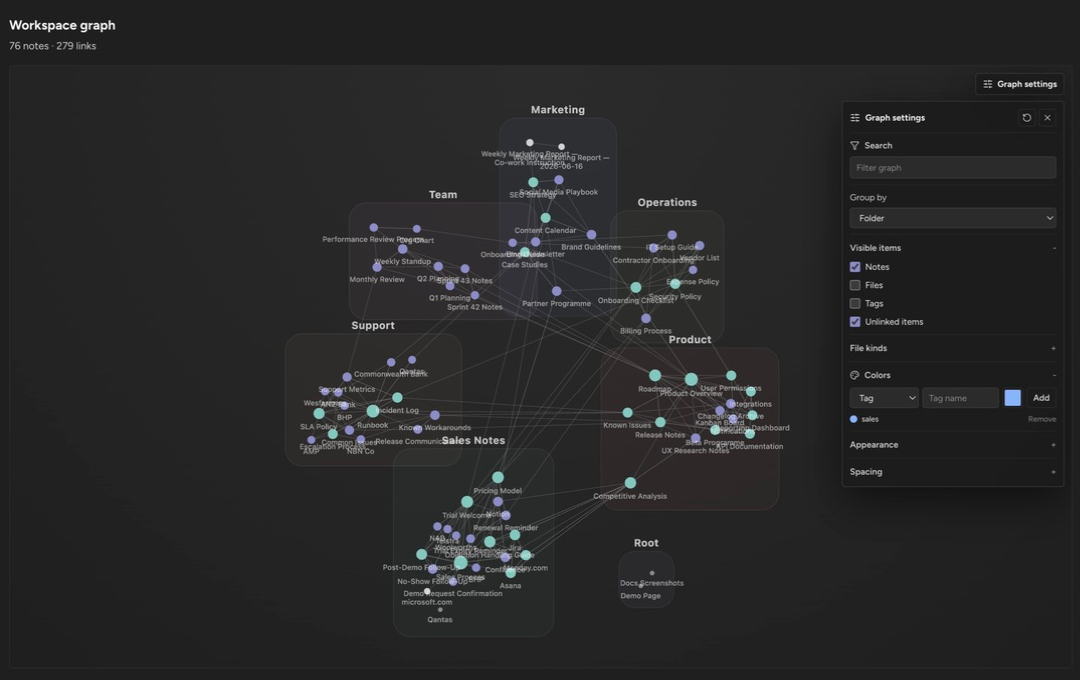
Section titled “Explore the workspace graph”Open Graph from the workspace sidebar (or run Go to graph view from the command palette) for the full Workspace graph: every note as a node, every wiki link as an edge. Click a node to open the note.
The Graph settings panel controls the picture:
- Filter graph — a text filter over the nodes.
- Group by — None, Folder, Tag, or File type.
- Visible items — toggle Notes, Files, and Tags, and show or hide Unlinked items; narrow by File kinds.
- Colors — add color rules that paint nodes by Tag, Folder, Kind, Path, Title, or Links (link count).
Reset graph controls returns everything to defaults. Your settings persist per workspace.
Why is a note missing from the graph? It has no wiki links in or out and Unlinked items is toggled off. Toggle it on, or link the note.
Do backlinks update when I rename a note? Yes — renames rewrite inbound links workspace-wide, so backlinks and the graph stay correct. See Link notes with wiki links.
Up next: keep the underlying files ordered with Organize folders and tags.