

Import files
Import existing documents into a workspace and convert the right ones into editable notes.
Import from your computer
Section titled “Import from your computer”- Choose New in the sidebar, then Import files.
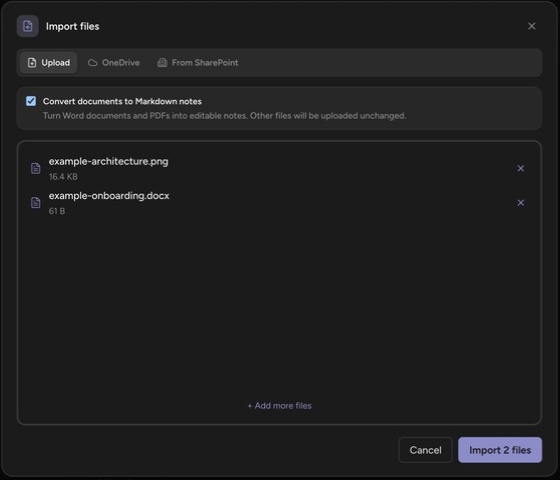
- In the Import files dialog, stay on the Upload tab and drop files in, or click to browse.
- Leave Convert documents to Markdown notes checked to turn Word documents, PDFs, and HTML pages into editable notes; other files upload unchanged.
- Choose Import.
Dropping files straight onto the file tree works too — Orbit tells you which of the dropped files it can convert and lets you decide.
Import from OneDrive or SharePoint
Section titled “Import from OneDrive or SharePoint”- In the Import files dialog, switch to the OneDrive or From SharePoint tab.
- Pick a location or document library, then browse to the files.
- Select them and choose Import.
Cloud import converts .docx, .pdf, and .html files into notes; other file types are not offered from the cloud tabs — download them and use the Upload tab instead.
Know what converts
Section titled “Know what converts”Local upload converts these into markdown notes, up to 10 MB per file:
.docx .pdf .html .htm .md .markdown .mdown .mkd .txt
Files over 10 MB, and any other file type, upload as-is (limits in Files and limits). Legacy Word .doc files are not supported — open the file in Word, choose Save As .docx, and try again.
HTML import understands pages exported from Confluence, CKEditor-based wikis, and Word’s Save as web page: merged table cells and column widths carry over, and in-page anchors become links to the matching headings in the new note.
Review after importing
Section titled “Review after importing”Conversion preserves text and structure — headings, lists, tables — but it cannot perfectly reproduce every layout from a PDF or Word document. Skim the converted note and tidy it in the editor before sharing.
Where do imported files go? Into the workspace folder you imported from, stored in your OneDrive or SharePoint library like everything else — see Where your notes live.
Can I keep the original and get a note? Import the file twice: once with the convert toggle on, once with it off.
Up next: Versions, export, and trash — history, exports, and recovery.