

Switch and find workspaces
The workspace switcher at the top of the sidebar is how you move between workspaces, discover ones you can join, and keep your list tidy.
Switch workspaces
Section titled “Switch workspaces”- Click the workspace name at the top of the sidebar.
- Pick a workspace from the list.
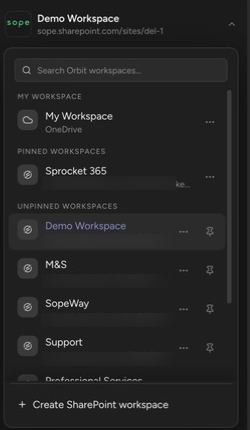
The list has four sections: My Workspace (your personal OneDrive workspace, always first), Pinned workspaces, Unpinned workspaces — team workspaces you can access but haven’t pinned — and, collapsed at the bottom, Archived workspaces.
Find workspaces you can join
Section titled “Find workspaces you can join”- Open the switcher.
- Type at least two characters in Search Orbit workspaces….
- Pick a result to open it.
Search covers workspaces Orbit can verify your Microsoft account already has access to — it does not browse your whole tenant. When everything you can access is already in your list, the switcher says All available workspaces are pinned.
Pin and unpin
Section titled “Pin and unpin”Opening a workspace doesn’t pin it. Click the pin icon on a row under Unpinned workspaces to move it into your pinned list.
To unpin: open the row’s actions menu (⋯), choose Unpin workspace, then confirm. Unpinning only removes the workspace from your personal list — it deletes nothing, and you can find and re-pin it any time. Your personal workspace can’t be unpinned.
Archived workspaces
Section titled “Archived workspaces”A workspace admin can archive a finished workspace so it leaves everyone’s list. Archived workspaces gather in the collapsible Archived workspaces section at the bottom of the switcher. Select one to open it — an archived workspace stays fully readable and editable. Workspace admins see Unarchive workspace on the row to bring it back. Archiving happens in Workspace settings.
Jump to the storage location
Section titled “Jump to the storage location”Each workspace’s actions menu (⋯) includes Open in OneDrive or Open in SharePoint — the workspace’s actual storage location in Microsoft 365. Use it to confirm where content lives, review Microsoft 365 permissions, or recover a file with SharePoint’s own version history and recycle bin.
The same menu also has Open workspace and Workspace settings — see Workspace settings.
Up next: Organize folders and tags.