

Search notes and commands
One palette finds notes, runs commands, and navigates Orbit — press Cmd+J (macOS) or Ctrl+J (Windows/Linux).
Search your workspace
Section titled “Search your workspace”- Press Cmd/Ctrl+J.
- Type — the placeholder reads Search notes and commands….
- Pick a result with the arrow keys and press Enter to open it.
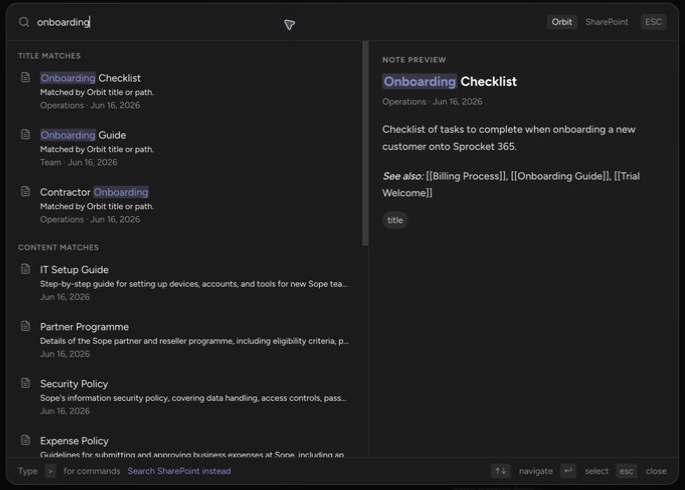
Results are grouped: Recent, Title matches, Content matches, Actions, Navigation, and Themes. Hovering a note result shows a rendered preview pane beside the list.
Title and path matches come from Orbit’s search index. Content matches run through Microsoft Graph with your own sign-in — your note bodies are never stored in Orbit’s database, so full-text search happens inside your Microsoft 365 tenant and returns only what you can access.
Run commands and navigate
Section titled “Run commands and navigate”Type > to filter to commands only (“Type > for commands”). The palette runs actions like Create new note, Open today’s note, and Rebuild link index, and navigation like Go to home, Go to graph view, and Go to trash — plus theme switching. Commands with a global shortcut show it inline; the full list is in Keyboard shortcuts.
Search SharePoint sources
Section titled “Search SharePoint sources”In a SharePoint-backed workspace, the palette also searches SharePoint itself — files beyond your Orbit notes.
- Press Cmd/Ctrl+J and choose Search SharePoint sources (placeholder: Search SharePoint sources…).
- Type at least 2 characters.
- Toggle the scope: Search only this site or Search across all SharePoint sites.
Results come from SharePoint you can access. Each result offers Open in SharePoint and Copy link. SharePoint search requires a one-time Microsoft 365 admin approval; until it is granted, the palette shows Grant admin consent.
Why does a brand-new note not match by content yet? Microsoft indexes new file content on its own schedule. Title matches appear immediately; content matches follow once Microsoft 365 has indexed the file.
Can I search across workspaces? The palette searches the workspace you are in. Switch workspaces first — see Switch and find workspaces.
Up next: turn search hits into a connected wiki with Link notes with wiki links.