

Manage your organization
Organization administration happens inside Orbit’s settings modal — there is no separate admin portal.
Open the organization settings
Section titled “Open the organization settings”- Open Settings.
- Scroll to the Organization group in the sidebar.
- Choose a section: Overview, Analytics, Licenses, Orbit users, Workspaces, Ask Orbit - AI, or Audit.
The Organization group is visible only to Orbit tenant admins and tenant owners.
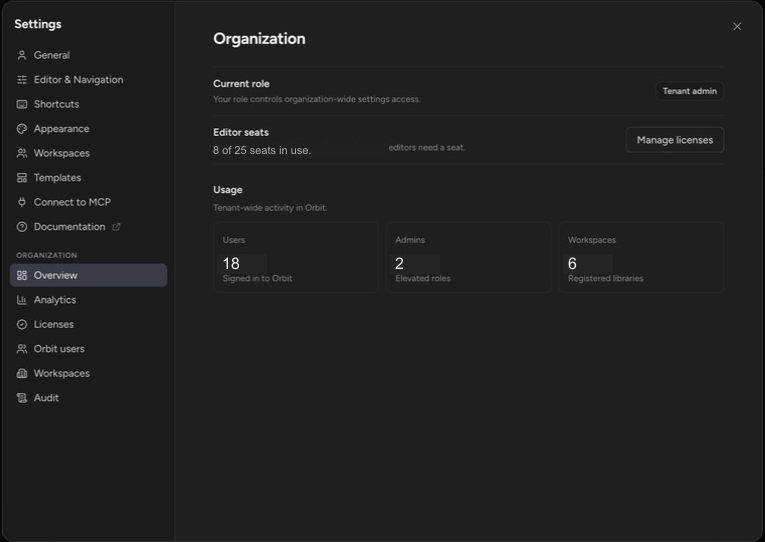
Know who is an org admin
Section titled “Know who is an org admin”Orbit has three organization roles of its own: Member, Tenant admin, and Tenant owner. The first person from your organization to sign in to Orbit is promoted to tenant owner automatically; that promotion is recorded in the audit log. Tenant admins and owners see the Organization sections; only tenant owners can change roles.
Read the Overview
Section titled “Read the Overview”Overview shows your current role, tenant-wide Usage stats (Users, Admins, Workspaces), and an Editor seats summary with a Manage licenses shortcut into the Licenses section.
Track usage in Analytics
Section titled “Track usage in Analytics”Analytics shows organization activity over a selectable Time range (Last 7 days, Last 30 days, Last 90 days): cards for Active users, Notes created, Shares created, Mentions & comments, and Editor seats, an Activity heatmap covering the last 52 weeks, and daily activity charts.
Manage editor licenses
Section titled “Manage editor licenses”Licenses is where reading stays free and editing gets a seat:
- How licenses are assigned — choose Invite only (an admin approves every license) or Automatic while seats are free (requests are granted instantly while seats remain).
- Pending requests — Approve or Deny people waiting for an editor license.
- Licensed editors — Revoke a license to free its seat; the person keeps read access.
- Assign a license — search your directory and grant a seat directly.
For seat pricing, adding seats, and payment, see Buy and manage seats; for how seats work, see How editor seats work.
Manage people and roles
Section titled “Manage people and roles”Orbit users lists everyone who has signed in, sorted by tenant authority, with search and last-login dates. Tenant owners assign the Tenant owner and Tenant admin roles here.
Review workspaces
Section titled “Review workspaces”Workspaces is the tenant-wide workspace inventory, including the reset action — see Workspace inventory.
Configure Ask Orbit
Section titled “Configure Ask Orbit”Ask Orbit - AI controls whether members can ask questions over workspace notes and which workspaces are included. By default, Ask Orbit uses Orbit’s hosted Azure OpenAI provider.
To use your organization’s Azure OpenAI resource instead:
- Turn on Use your organization’s Azure OpenAI key. The Azure fields appear below the toggle.
- Paste the Azure OpenAI or Microsoft Foundry resource endpoint.
- Enter an API key for that resource.
- Choose Load models, then select the model deployment Ask Orbit should use.
- Choose Save Azure configuration.
Orbit encrypts the key before storing it and never displays it again. While the toggle is on, note context and questions go directly to that Azure OpenAI resource and Microsoft bills the usage to your organization. Turn the toggle off to return to Orbit’s hosted provider; the saved Azure configuration is retained for later use.
Review the audit log
Section titled “Review the audit log”Audit shows the organization’s event stream: admin, organization, billing, license, note, sharing, and workspace events. Filter by date range and action, and expand any event for details including actor, workspace, resource ID, IP address, and user agent.
Up next: Workspace inventory.