

Lists and Base documents
A Base document (a .base file) is a live view over a Microsoft List or document library on your workspace’s site. Rows live in the SharePoint list, never in Orbit, so the same data shows up in the Lists app, Power Automate and Copilot.
Lists work in team (SharePoint) workspaces. In a personal OneDrive workspace the document shows “This list needs a SharePoint workspace”. Move the file into a SharePoint workspace to use it.
Create a list
Section titled “Create a list”- In a team workspace, choose New in the sidebar, then New list.
- Name it and confirm. Orbit creates a
.basefile. - In the picker, choose an existing list or library, or choose New list to create a fresh Microsoft List. A new list starts with Title, Status (Not started, In progress, Done) and Due date columns.
The first time, Orbit asks for permission to read your SharePoint sites. Use Change list in the header to point the document at a different source later.
Put a list in a page
Section titled “Put a list in a page”Type / and choose List. Pick a list, or choose Create new list to make one next to the page. The page shows the list live, as ![[Name.base]] in the markdown. You can edit cells, drag cards and add rows right inside the page.
Edit rows
Section titled “Edit rows”Writers with an editor seat can:
- Edit cells. Type into text and number cells, pick choices, tick yes/no boxes and set dates.
- Add rows with New, and delete rows. A deleted row can be brought back with Undo in the toast.
- Add columns: text, number, choice, date or yes/no.
People, lookup, hyperlink and calculated columns are shown but can’t be edited in Orbit yet. Edit them in the Lists app.
The first time you edit, Orbit asks for permission to change SharePoint lists. SharePoint still decides each change. If the list’s own permissions don’t let you edit, the table turns read-only and says so.
Choose a layout
Section titled “Choose a layout”Switch between three layouts at the top of the list:
- Table: rows and columns.
- Board: cards grouped by a choice column, such as Status. Drag a card to another group to change its value.
- Calendar: rows placed on a month grid by a date column. Drag a row to another day to change its date, or choose New on a day to add a dated row.
Writers change the layout for everyone. Readers can switch layouts for themselves without changing what others see.
Shape the view
Section titled “Shape the view”The view is shared and saved in the document, so every collaborator sees the same columns, sort and filters. Writers can:
- Columns: show or hide columns, drag headers to reorder, drag header edges to resize, Reset to defaults.
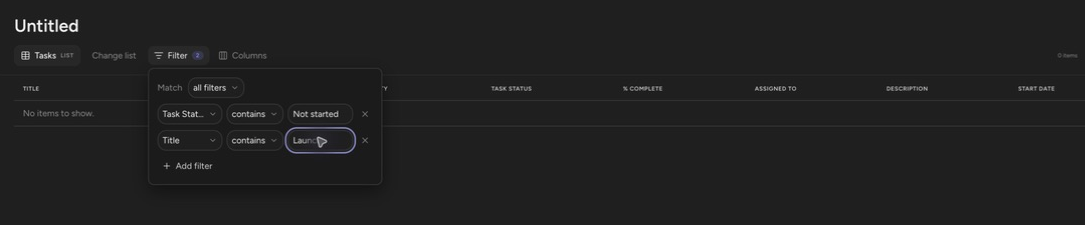
- Filter: add clauses per column (text, number, date and yes/no operators) and match all filters or any filter.
- Sort: click a column header to toggle ascending or descending.
One .base file holds one view. To show the same list two ways, create a second .base file over the same list.
Browse a document library
Section titled “Browse a document library”When the source is a document library, the table is a read-only browser that goes folder by folder with a breadcrumb. Click a folder row to enter it. The pin button on the breadcrumb sets the default: Pin as default folder makes the document open at that folder for everyone. Unpin to open at the library root again.
Files that live in this workspace open in Orbit. Files from other libraries open in SharePoint.
Know what’s stored
Section titled “Know what’s stored”Rows are read live with each viewer’s own SharePoint permissions and are never stored by Orbit. Someone without access to the underlying list sees an error, not your data. Changes made in Orbit appear for other viewers right away. Changes made elsewhere, such as in the Lists app or by a flow, appear within about a minute while the list is open.
Very large lists are capped. The footer reads “Showing the first {count} items — this list has more.” when a view is truncated.
Up next: Templates — start repeated pages from a shared starting point.