

Share a page
Give someone access to one page without opening up the whole workspace.
Every Orbit share is scoped to signed-in Microsoft accounts: a share goes direct to a named person, or to anyone in your Microsoft 365 organization after they sign in. There are no anonymous or public links.
Share with a person
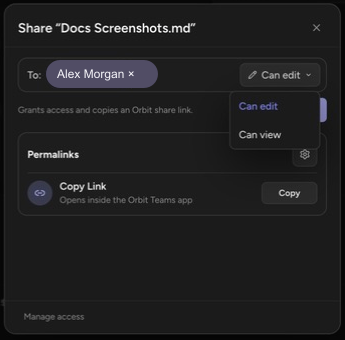
Section titled “Share with a person”- Open the page and click Share page in the header — the dialog Share “{name}” opens.
- In the To: field, search by Name, group, or email and select the person.
- Pick the role next to the field: Can edit or Can view.
- Click Share.
Orbit grants access and copies a personal share link to your clipboard — the dialog says so: “Grants access and copies an Orbit share link.” Send the link however you like; it works only for that person.
The first time you search for people, Orbit asks for the just-in-time Microsoft permission to read your organization’s directory.
Create an organization link
Section titled “Create an organization link”Under Permalinks, click Copy Link to create and copy an organization link. It opens the page inside the Orbit Teams app and works for anyone in your organization who signs in. Choose Can view or Can edit for the link. Editing through an organization link still needs an editor seat.
Click the gear to open Link settings:
- The link works for — People in {org} (“Anyone in {org} with the link”) or People with existing access (“No new access granted”: the link is just a pointer for people who already have access).
- Expiration date — optional; clear it with Clear expiration.
Redeem a share link
Section titled “Redeem a share link”Recipients open the link (an orbit.sprocket365.com/share/… URL) and sign in with their Microsoft account. Orbit checks the share and opens the page.
Manage and revoke access
Section titled “Manage and revoke access”Click the avatar row at the bottom of the share dialog — Manage access — to see every share on the page, grouped into Direct shares and Organization links, each with its role and expiry. Copy any share’s link again, or click Remove access and confirm. Revocation takes effect immediately: the link stops opening the page.
The Workspace access section is a reminder that workspace members keep their access regardless of page shares — “Workspace members may already have access through workspace settings.”
Can I share with someone outside my organization? No. Both share types resolve against your Microsoft 365 organization; recipients sign in with an account in your tenant.
Does revoking a share lock the person out? It removes the page-specific access. If they also have workspace access, that remains — see Understand who can do what.
Up next: see how workspace access, admin rights, and seats combine in Understand who can do what.