

Create a team workspace
Create a shared workspace backed by a SharePoint site your team already uses.
Connect SharePoint
Section titled “Connect SharePoint”The first time, Orbit needs permission to see and manage your SharePoint sites — it asks just in time, not at sign-in.
- Open the workspace switcher at the top of the sidebar.
- Click Connect Microsoft 365 at the bottom of the list.
- Approve the Microsoft consent prompt.
One prompt covers both permissions involved: reading your sites (to list and search them) and managing sites (to create the Orbit document library). Orbit can only access sites your account can already access.
Create the workspace
Section titled “Create the workspace”- Open the workspace switcher and click Create SharePoint workspace.
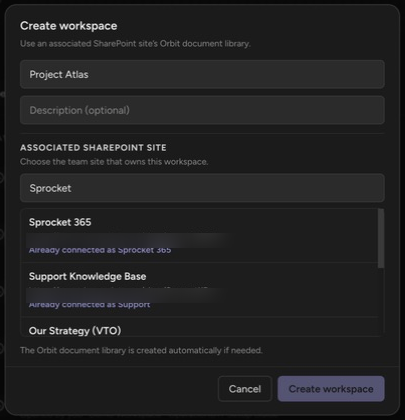
- In the Create workspace dialog, enter a name and pick the Associated SharePoint site — choose from your followed sites or use Search sites.
- Click Create workspace.
The Orbit document library is created automatically on the site if it doesn’t already exist. When creation finishes, click Open workspace.
Give your team access
Section titled “Give your team access”There is no invite step in Orbit. Membership is the SharePoint site’s membership:
- Everyone already in the site’s Owners, Members, or Visitors groups can open the workspace now.
- To add or remove people, manage the site’s members in SharePoint (or the connected Microsoft 365 group in Teams/Outlook).
- Orbit’s Members section is a read-only mirror of those groups.
Writers also need an editor seat to edit; without one they can read everything but not change it.
Can I connect one site to two workspaces? No. If the site already has an Orbit workspace, the dialog tells you: This site is already connected to the existing workspace.
Who administers the workspace? The creator and tenant admins — an Orbit rule, independent of SharePoint roles. See Workspace settings.
Up next: Switch and find workspaces.