

Connect AI clients
Connect an AI client to Orbit once, and it can search, read, and edit your notes — always as you, never beyond your permissions.
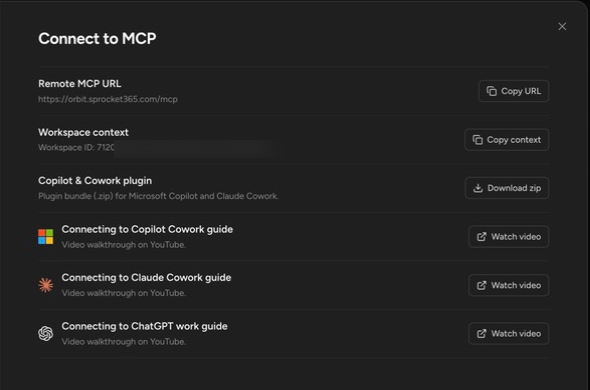
Copy the connector URL
Section titled “Copy the connector URL”- Open Settings.
- Select Connect to MCP.
- In the Remote MCP section, select Copy URL next to Remote MCP URL.
The URL is https://orbit.sprocket365.com/mcp.
Add Orbit to your AI client
Section titled “Add Orbit to your AI client”- In your client, add a remote MCP server (in Claude this is a custom connector) and paste the Orbit URL.
- When the client asks you to authorize Orbit, sign in with your Microsoft account.
- Ask the client to list your Orbit workspaces to confirm the connection.
The OAuth sign-in is the whole security model: the client acts as you. It sees only workspaces and notes you can see, its edits appear under your name, and writing requires your own editor seat — the same rules as editing in the browser.
The Connect to MCP pane also links step-by-step guides for Claude Cowork, Microsoft Copilot Cowork, and ChatGPT, plus a Download zip button for the Copilot & Cowork plugin bundle.
Point the client at the right note
Section titled “Point the client at the right note”The same pane offers copyable context so you never have to describe a note by hand:
- Workspace context — the workspace ID, for workspace-wide asks (“summarize this workspace”).
- Current note context — workspace and note IDs, for note-specific asks. You can also right-click any note in the file tree and choose Copy note context.
Paste the context into your chat along with your request; the client uses the IDs directly instead of guessing.
Up next: browse everything a connected client can do in the MCP tool reference.