

Open a note in Claude or ChatGPT
Send any note to Claude or ChatGPT in one click, with a prompt already filled in and pointed at the right note.
Hand a note to an AI client
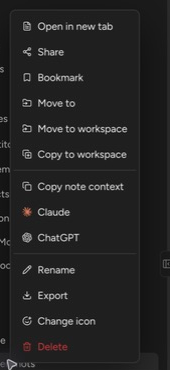
Section titled “Hand a note to an AI client”- Right-click a note in the file tree (or open the note’s ⋯ menu).
- Select Claude or ChatGPT.
- The app opens with a short prefilled prompt naming the note, then a
Start prompt here....placeholder. Replace the placeholder with your ask and send.
The prompt looks like this:
Orbit note - Q3 PlanningWorkspace ID: cc8cf612-93c6-4045-99c1-a97913539541Note ID: 01Z2LFQAL7WD6ES32RXJC2Q4IRESNFI676
-----------------------------------------------------------------------
Start prompt here....
On mobile, the note menu offers the same two entries.
Understand what gets shared
Section titled “Understand what gets shared”The handoff passes a reference, never content: the note’s title and the two identifiers the connector uses to find it. No note text enters the prompt or your clipboard history.
The AI client then reads the live note through the Orbit MCP connector — as you, under your permissions. Nothing goes stale and nothing is truncated, because the client always fetches the current version. Edits it makes follow the same rules as your own: write access plus an editor seat.
Know how each context behaves
Section titled “Know how each context behaves”- Desktop browser — the Claude or ChatGPT desktop app opens directly with the prompt prefilled. If nothing happens for Claude, Claude Desktop is not installed.
- Microsoft Teams — for Claude, Orbit opens a small launcher page in your system browser, which hands the prompt to Claude Desktop; for ChatGPT, Orbit opens ChatGPT in the browser with the prompt prefilled.
- Mobile — for Claude, Orbit copies the prompt and shows “Prompt copied — paste it into Claude”; for ChatGPT, Orbit opens ChatGPT in the browser.