

Edit pages
This page shows you how to create a page and do everyday editing in Orbit’s block editor — you write in rich, rendered blocks, and Orbit saves your work automatically.
Create a page
Section titled “Create a page”- Open a workspace.
- Click the New (+) button next to the Pages header at the top of the sidebar, then choose New page — or press Cmd+N (Mac) / Ctrl+N (Windows). New page from template in the same menu starts from a template instead.
- Type a name and confirm.
The page opens ready to write. An empty page offers Quick starts and a Browse templates button — see Templates.
Insert blocks with the slash menu
Section titled “Insert blocks with the slash menu”Type / on an empty line to open the slash menu. It inserts every block type: Text, Heading 1 through Heading 4, Bullet list, Ordered list, Task list, Quote, Divider, six callouts (Note, Tip, Info, Success, Warning, Danger), Collapsible section, Columns, Code block, Table, List (a Microsoft List), Table of contents, Emoji, Subpage (creates a page inside this one and links to it), Link to page, Live page, Embed drawing, Mermaid diagram, HTML block, Image, YouTube video, Microsoft Stream video, and Meeting notes. Search Microsoft 365 finds a file across your organization and links it; narrower versions search only Word documents, Excel workbooks, PowerPoint presentations, PDFs or videos. Increase indent and Decrease indent are there too for list items.
Type after the / to filter — /tab narrows to Table and Table of contents. Type : followed by a name to insert an emoji.
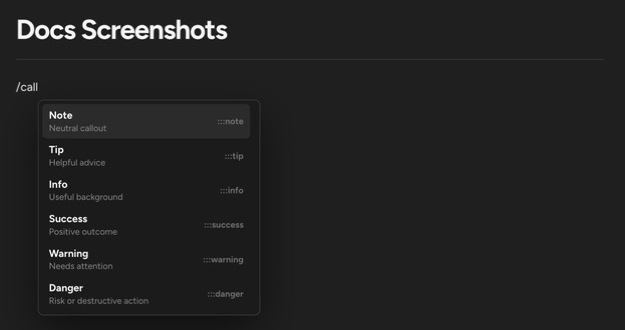
Markdown also works as typing shorthand for most of these blocks — see Markdown shortcuts.
Format text with the floating toolbar
Section titled “Format text with the floating toolbar”Select text to show the formatting toolbar: Bold, Italic, Underline, Strikethrough, Inline code, Highlight (pick a colour — blue, green, orange, purple, red, or yellow — or Remove highlight), Link, Increase indent and Decrease indent for list items, a Turn into dropdown that converts the current block into another type, Comment, and Improve Orbit for AI edits.
Link opens a small form for the URL.
Improve text with AI
Section titled “Improve text with AI”Select text and click Improve Orbit in the toolbar to open the Ask Orbit to improve menu:
- Improve writing, Fix spelling & grammar, Make shorter, Make longer, Simplify language, Summarize, and Key points.
- Change tone — Professional, Casual, Straightforward, Confident, or Friendly.
- Your own instruction in Tell Orbit what to change… (up to 500 characters), then Run.
The original text is struck through in place while the suggestion streams in below it. Nothing changes in the page — and collaborators see nothing — until you choose Accept. Try again requests a new suggestion and Discard drops it. If someone edits the selected text while Orbit is working, the suggestion is discarded automatically.
The button appears only when Ask Orbit is turned on for your organization and this workspace, you have edit access, and you hold an editor seat. A selection can be up to 6,000 characters. Each run counts toward the same daily AI allowance as Ask Orbit.
Move and manage blocks
Section titled “Move and manage blocks”Hover over a block to show its drag handle in the left margin.
- Drag the handle to reorder blocks. Drop it at the left or right edge of another block to put the two side by side — see Columns.
- Drag the handle onto a page in the sidebar to move the block to the end of that page.
- Click the handle for the block menu: Turn into, Duplicate, Move to, Copy, and Delete. Move to opens a page search and moves the block to the end of the page you pick.
- A moved block keeps its images. Its comments stay with the original page. If someone changes the block while it is moving, Orbit leaves it in place and says it was copied instead. Meeting blocks can’t be moved to another page.
- Alt-click (Option-click on Mac) the + beside a block to insert a new block above it instead of below.
Collapsible sections
Section titled “Collapsible sections”A collapsible section folds its content under a title, so long reference material stays out of the way until someone needs it.
- Insert one from the slash menu (Collapsible section — “Toggle to show or hide content”) or convert existing blocks with Turn into → Collapsible section from the drag handle or the toolbar. Converting a heading makes its text the section title; other blocks move into the body with an empty title.
- Type the title where the placeholder reads Section title. Enter moves into the body — the title is always a single line.
- Tab on the block directly below a section tucks that block into the end of the section; Shift+Tab lifts the section’s last block back out. This does not apply inside lists or tables, where Tab keeps its usual meaning.
- Backspace at the very start of the title dissolves the section: the title becomes a paragraph and the body blocks lift out in place.
- Blocks inside the body have their own drag handles, and sections can nest inside sections.
Open or closed is remembered per person and is never saved to the page, so collapsing a section does not change it for anyone else. Sections start open while editing and closed in reading mode. In the markdown file a section is stored as :::details[Title] … :::.
HTML blocks
Section titled “HTML blocks”An HTML block keeps a whole HTML page — a report, an overview, or a process diagram an AI assistant generated for you — inside the page, exactly as written.
- Insert one from the slash menu (HTML block) and paste or type the HTML. Pasting a complete HTML page (one that starts with
<!DOCTYPE html>or<html>) anywhere in a page creates an HTML block automatically. - The block shows a preview. Choose Edit source to change the HTML and Preview to see the result again. Drag the bar under the preview to change its height.
- The preview runs in a locked-down sandbox. Styles, tables, SVG, and images embedded as
data:URIs display normally. Scripts, forms, embedded frames, images or fonts loaded from other websites, and links are blocked, so the HTML can never reach your account or send data anywhere. - An HTML block cannot go inside a collapsible section, a callout, or a table. If you drag one there, Orbit moves it just below.
- PDF and Word exports show a placeholder card for each HTML block; open the page in Orbit to see it.
In the markdown file a block is stored as :::html{title="…" height="…"}, then the HTML, then a line containing only :::. A line containing only ::: inside the HTML ends the block early, and Orbit warns you when the source has one.
Columns
Section titled “Columns”Columns put blocks side by side — a summary next to a picture, or two options compared.
- Drag a block by its handle to the left or right edge of another block. A vertical line shows where the new column goes; drop to place the blocks side by side. Drop beside a block that is already in a column to add another column to that row (up to five).
- Or choose Columns from the slash menu to start with two empty columns.
- Or select blocks, click a block’s handle and choose Turn into columns to put each one in its own column (a single block gets an empty column beside it).
- Hover between two columns and drag the thin line to change their widths. Double-click the line to make every column the same width.
- Each block in a column has its own handle. Its menu has a Columns group: Move to new column, Equal widths and Remove column (removes the column and everything in it).
- Drag or delete the last block out of a column and the column disappears; when only one column is left, its blocks return to the page.
- On narrow screens and phones the columns stack vertically.
- Columns appear side by side in reading mode and PDF exports. Word exports show them as a borderless table.
In the markdown file a row is stored as :::::columns, each column as ::::column{width="60"} (the width is a percentage) closed by ::::, and the row closed by :::::.
Style a page
Section titled “Style a page”Hover above a page’s title and click + Add to add a Cover, a Subtitle or Owners. Each option disappears from the menu once the page has it.
- Cover opens the cover picker: choose from the Gallery (Abstract, Midnight, Textures and Workflow), search Unsplash (when your organization has it set up) or upload an image. Hover the cover to Change cover or remove it.
- The subtitle is a single line under the title. Clear it to remove it.
- Owners shows the people responsible for the page, with their Microsoft 365 profile photos. Search for people the same way as @-mentions; hover an owner and click the × on their photo to remove them. Owners are for display only — they don’t change who can open or edit the page.
Covers, subtitles and owners are saved with the page in Orbit, so everyone who opens the page sees them. Locked pages can’t be changed: lock or unlock a page from the … menu at the top right (a small lock appears next to Last modified while it’s locked). AI agents connected through MCP can’t change a locked page either; they’re told to ask you to unlock it first.
Check off tasks
Section titled “Check off tasks”Task list checkboxes are interactive — click a box to toggle it done, right in the page. Use them for action items.
Find text in a page
Section titled “Find text in a page”Press Cmd+F (Mac) / Ctrl+F (Windows) to open Find in page, then step through results with Previous match and Next match.
Fix spelling
Section titled “Fix spelling”Turn on Spellcheck under Settings → Editor & Navigation. Misspelled words get an underline with suggestions: Replace with a correction, Ignore all in this page, or Add to my dictionary.
Keep pages organized
Section titled “Keep pages organized”Right-click a page in the file tree (or open its row menu in the page list) for:
- Rename — wiki links that point at the page are rewritten automatically.
- Move to a folder, or Move to workspace / Copy to workspace. If the destination already has an item with that name, Orbit asks whether to Replace it or Keep both.
- Duplicate — reuse a page’s structure without touching the original. Folders can be duplicated too, including everything inside them.
- Bookmark — bookmarked pages are collected under Bookmarks in the sidebar; Remove bookmark takes them out.
- Tags — add tags in the page or from the page list, then group and filter by them. See Organize folders and tags.
- Copy link — copies a link to the page. Headings inside a page have their own Copy link, which opens the page scrolled to that heading.
The home screen lists your Recently viewed pages so you can jump back into active work.
Do I need to save? No. Orbit saves continuously and keeps version history.
Can I see the markdown behind a page? Yes — open Raw markdown from the page’s More (…) menu. See Raw markdown.
Can others edit at the same time? Yes. Pages are collaborative in real time — see Live editing.
Up next: Markdown shortcuts — type formatting instead of clicking it.