

Edit notes
This page shows you how to create a note and do everyday editing in Orbit’s block editor — you write in rich, rendered blocks, and Orbit saves your work automatically.
Create a note
Section titled “Create a note”- Open a workspace.
- Click the New (+) button next to the Notes header at the top of the sidebar, then choose New note — or press Cmd+N (Mac) / Ctrl+N (Windows). New note from template in the same menu starts from a template instead.
- Type a name and confirm.
The note opens ready to write. An empty note offers Quick starts and a Browse templates button — see Templates.
Insert blocks with the slash menu
Section titled “Insert blocks with the slash menu”Type / on an empty line to open the slash menu. It inserts every block type: Paragraph, Heading 1 through Heading 4, Bullet list, Ordered list, Task list, Quote, Divider, six callouts (Note, Tip, Info, Success, Warning, Danger), Collapsible section, Code block, Table, Table of contents, Wiki link, Embed note, Embed drawing, Mermaid diagram, Image, YouTube video, Microsoft Stream video, and Meeting notes. Increase indent and Decrease indent are there too for list items.
Type after the / to filter — /tab narrows to Table and Table of contents. Type : followed by a name to insert an emoji.
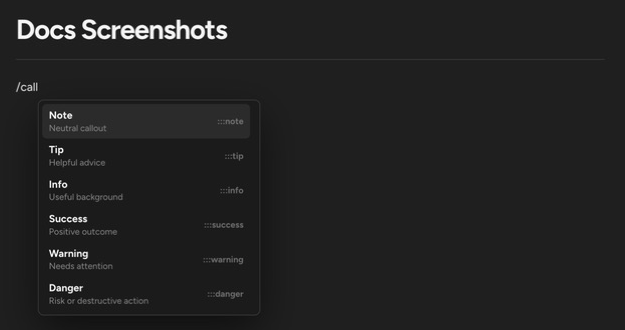
Markdown also works as typing shorthand for most of these blocks — see Markdown shortcuts.
Format text with the floating toolbar
Section titled “Format text with the floating toolbar”Select text to show the formatting toolbar: Bold, Italic, Underline, Strikethrough, Inline code, Highlight (pick a colour — blue, green, orange, purple, red, or yellow — or Remove highlight), Link, Increase indent and Decrease indent for list items, a Turn into dropdown that converts the current block into another type, Comment, and Improve Orbit for AI edits.
Link opens a small form for the URL. Pressing Cmd/Ctrl+K does the same — see Keyboard shortcuts.
Improve text with AI
Section titled “Improve text with AI”Select text and click Improve Orbit in the toolbar to open the Ask Orbit to improve menu:
- Improve writing, Fix spelling & grammar, Make shorter, Make longer, Simplify language, Summarize, and Key points.
- Change tone — Professional, Casual, Straightforward, Confident, or Friendly.
- Your own instruction in Tell Orbit what to change… (up to 500 characters), then Run.
The original text is struck through in place while the suggestion streams in below it. Nothing changes in the note — and collaborators see nothing — until you choose Accept. Try again requests a new suggestion and Discard drops it. If someone edits the selected text while Orbit is working, the suggestion is discarded automatically.
The button appears only when Ask Orbit is turned on for your organization and this workspace, you have edit access, and you hold an editor seat. A selection can be up to 6,000 characters. Each run counts toward the same daily AI allowance as Ask Orbit.
Move and manage blocks
Section titled “Move and manage blocks”Hover over a block to show its drag handle in the left margin.
- Drag the handle to reorder blocks.
- Click the handle for the block menu: Turn into, Duplicate, Copy, and Delete.
- Alt-click (Option-click on Mac) the + beside a block to insert a new block above it instead of below.
Collapsible sections
Section titled “Collapsible sections”A collapsible section folds its content under a title, so long reference material stays out of the way until someone needs it.
- Insert one from the slash menu (Collapsible section — “Toggle to show or hide content”) or convert existing blocks with Turn into → Collapsible section from the drag handle or the toolbar. Converting a heading makes its text the section title; other blocks move into the body with an empty title.
- Type the title where the placeholder reads Section title. Enter moves into the body — the title is always a single line.
- Tab on the block directly below a section tucks that block into the end of the section; Shift+Tab lifts the section’s last block back out. This does not apply inside lists or tables, where Tab keeps its usual meaning.
- Backspace at the very start of the title dissolves the section: the title becomes a paragraph and the body blocks lift out in place.
- Blocks inside the body have their own drag handles, and sections can nest inside sections.
Open or closed is remembered per person and is never saved to the note, so collapsing a section does not change it for anyone else. Sections start open while editing and closed in reading mode. In the markdown file a section is stored as :::details[Title] … :::.
Check off tasks
Section titled “Check off tasks”Task list checkboxes are interactive — click a box to toggle it done, right in the note. Use them for action items.
Find text in a note
Section titled “Find text in a note”Press Cmd+F (Mac) / Ctrl+F (Windows) to open Find in note, then step through results with Previous match and Next match.
Fix spelling
Section titled “Fix spelling”Turn on Spellcheck under Settings → Editor & Navigation. Misspelled words get an underline with suggestions: Replace with a correction, Ignore all in this note, or Add to my dictionary.
Keep notes organized
Section titled “Keep notes organized”Right-click a note in the file tree (or open its row menu in the note list) for:
- Rename — wiki links that point at the note are rewritten automatically.
- Move to a folder, or Move to workspace / Copy to workspace. If the destination already has an item with that name, Orbit asks whether to Replace it or Keep both.
- Duplicate — reuse a note’s structure without touching the original. Folders can be duplicated too, including everything inside them.
- Bookmark — bookmarked notes are collected under Bookmarks in the sidebar; Remove bookmark takes them out.
- Tags — add tags in the note or from the note list, then group and filter by them. See Organize folders and tags.
- Copy link — copies a link to the note. Headings inside a note have their own Copy link, which opens the note scrolled to that heading.
The home screen lists your Recently viewed notes so you can jump back into active work.
Do I need to save? No. Orbit saves continuously and keeps version history.
Can I see the markdown behind a note? Yes — open Raw markdown from the note’s More (…) menu. See Raw markdown.
Can others edit at the same time? Yes. Notes are collaborative in real time — see Live editing.
Up next: Markdown shortcuts — type formatting instead of clicking it.