

Tables
Build tables directly in the note — Orbit gives you a working grid with a floating control overlay, and stores the result as a markdown table in the file.
Insert a table
Section titled “Insert a table”- Type
/and choose Table, or select text and choose Insert table in the formatting toolbar. - Orbit inserts a 3 by 3 table with a header row.
- Click any cell and start typing; Tab moves to the next cell.
Reshape the table
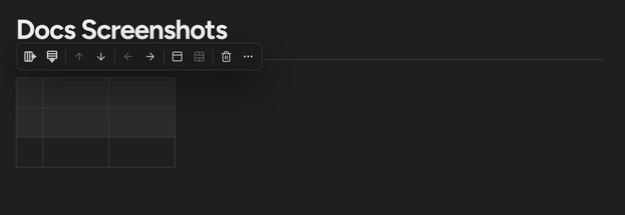
Section titled “Reshape the table”Click into a table to show its floating overlay. From it you can:
- Add row above / Add row below, Move row up / Move row down, Delete row
- Add column left / Add column right, Move column left / Move column right, Delete column
- Merge or split — merge the selected cells, or Split cell to undo a merge
- Header row and Header column — toggle header styling
- Align left, Align center, Align right — set column alignment
- Delete table
Quick-add buttons on the table’s right and bottom edges do Add column right and Add row below in one click.
Resize columns
Section titled “Resize columns”Drag a column border to resize it. Widths are saved with the note, so the layout you set is the layout every reader and collaborator sees — it survives reloads.
Can I sort or filter a table? Editor tables are for writing. For a live, sortable, filterable view over SharePoint data, use a Base document.
Can two people edit one table at once? Yes — tables sync in real time like every other block. See Live editing.
Up next: Media and diagrams — images, video, Mermaid, and tables of contents.