

Write your first note
In five minutes you will create a note and use the four editing moves you’ll use every day.
Create the note
Section titled “Create the note”- Click the New (+) button next to the Notes header at the top of the file tree.
- Choose New note and name it
Team onboarding.
The editor opens. Type a sentence — it becomes a paragraph block, and it saves automatically as you type.
Add a heading with markdown shorthand
Section titled “Add a heading with markdown shorthand”Type # followed by a space, then First week. The line converts instantly into a Heading 1 block. ## gives you Heading 2, - starts a bullet list, > a quote. You never see raw markdown — the shorthand converts as you type. Full list: Markdown shortcuts.
Insert blocks with the slash menu
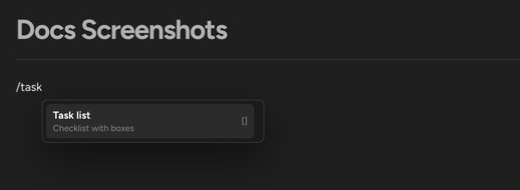
Section titled “Insert blocks with the slash menu”- On an empty line, type
/. - Type
taskto filter, then choose Task list. - Add two items:
Read the wikiandMeet the team.
Click a checkbox to tick it — checkboxes are interactive for everyone reading the note. The slash menu is the catalog of everything you can insert: headings, lists, Quote, Code block, Table, Table of contents, callouts, Mermaid diagram, Image, and more.
Link to another note
Section titled “Link to another note”- On a new line, type
[[. - Start typing another note’s name and pick it from the picker.
The result is a wiki link — click it to jump to that note. The linked note gains a backlink to this one automatically, and the link keeps working when either note is renamed.
That’s the core loop: type, convert with shorthand, insert with /, connect with [[. The full editor reference — tables, callouts, images, diagrams, find in note — is at Edit notes.
Up next: Build a wiki that stays current — how to structure what you write so it doesn’t rot.