

Media and diagrams
Add images, video, and diagrams where words alone fall short — everything here inserts from the slash menu (/).
Add images
Section titled “Add images”- Type
/and choose Image, or use Image in the formatting toolbar. - In the Insert image dialog, pick Computer to upload, or SharePoint assets to reuse an image from a document library.
- The image lands at your cursor.
Pasting or dropping an image file into the note also works. Drag the resize handle on a selected image to set its width — the size is saved with the note. Images are stored in the workspace alongside the note, so everyone with access to the note sees them. Upload limits are in Files and limits.
Markdown can also reference an existing image by its workspace path. A path such as  is relative to the note’s folder; use ../ to move up a folder or start with / to resolve from the workspace root. Orbit keeps the relative path in the Markdown and resolves the image when it renders the note. Readers need access to the workspace to load a workspace-relative image.
Embed video
Section titled “Embed video”- YouTube video: choose it from the slash menu and paste the link into Embed YouTube video. The player renders in the note.
- Microsoft Stream video: choose it from the slash menu and paste a SharePoint video link (ending in
stream.aspx) into Embed Microsoft Stream video. The video plays with each viewer’s own Microsoft sign-in, so only people with access to the video in SharePoint can watch it.
Pasting a YouTube or Stream link on its own line embeds the player directly.
Draw diagrams with Mermaid
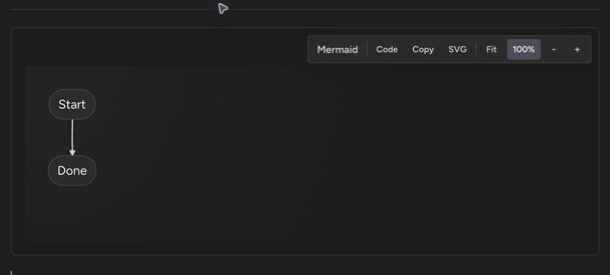
Section titled “Draw diagrams with Mermaid”Type / and choose Mermaid diagram, or type ```mermaid to start one. The block has two modes — Code and Preview:
- Write Mermaid source in Code mode; the diagram renders live.
- In Preview mode, use +, −, Fit, and 100% to inspect large diagrams. Drag to pan in both directions, scroll with a trackpad, or focus the diagram and use the arrow keys.
- Choose Expand for a larger view. Close or Escape returns to the note. Zoom and pan only change your view; they do not edit the shared note.
- Copy Mermaid source copies the definition; Download Mermaid SVG saves the rendered diagram as a file.
Link a diagram step to more detail
Section titled “Link a diagram step to more detail”Flowchart nodes can link to a page or a heading using click NODE href "DESTINATION" "DESCRIPTION":
flowchart TD A[Receive ticket] --> B[Escalate ticket] click A href "https://example.com/ticket-guide" "Open ticket guide" _blank click B href "#escalation" "Read escalation details"Replace the example URL with the copied link to your Orbit note or another web page. _blank opens a page in a new tab. A fragment such as #escalation jumps to ## Escalation in the current note. To jump to another diagram, put a heading above that diagram and link to the heading. Use a heading’s Copy link action when linking to a section in a different note.
Click a linked step to open its destination. Dragging a diagram does not activate its links. JavaScript callbacks are not supported.
Document a process for readers and AI
Section titled “Document a process for readers and AI”The template gallery includes Process / Procedure under Operations. It combines a linked diagram, a plain-English walkthrough, responsibilities, decision criteria, exceptions, and detailed steps. Replace the example ticket process with your team’s agreed procedure.
Keep important instructions and related links in ordinary Markdown as well as the diagram: diagram source is inside a code block, which Orbit’s text search and link index skip. If an AI helps write the walkthrough, give it the Mermaid source and detailed steps, ask it to preserve every decision and exception, and check that it has not invented missing rules.
For freehand and whiteboard-style diagrams, use Drawings instead.
Insert a table of contents
Section titled “Insert a table of contents”Type / and choose Table of contents. The block lists every heading in the note and updates live as you add, remove, or rename headings — no maintenance. An empty note shows “Add headings to populate this table of contents.” until there is something to list.
Put one at the top of long notes so readers can jump straight to a section.
Up next: Drawings — collaborative Excalidraw canvases you can embed in notes.